Vue.js 应用的"白屏死机":原因排查与解决方案全攻略
Posted on Tue 03 February 2026 in Journal
| Abstract | Vue.js 应用的"白屏死机":原因排查与解决方案全攻略 |
|---|---|
| Authors | Walter Fan |
| Category | learning note |
| Status | v1.0 |
| Updated | 2026-02-03 |
| License | CC-BY-NC-ND 4.0 |
Vue.js 应用的"白屏死机":原因排查与解决方案全攻略
引子:一个让人崩溃的周五下午
下午四点,你信心满满地把 Vue 项目打包上线。npm run build,成功。把 dist 目录扔到服务器上,配置好 Nginx。打开浏览器,输入地址,回车——
一片空白。
你愣了三秒,刷新。还是白的。打开控制台,一堆红色 404。本地 npm run serve 跑得好好的啊!
这个场景,我经历过不下十次。每次都觉得是"灵异事件",但其实背后的原因就那么几个。今天我把这些年踩过的坑整理出来,下次再遇到白屏,照着这份清单排查,五分钟内定位问题。
读完这篇文章,你能带走:
- Vue 白屏的 七大常见原因 及其原理
- 每种原因对应的 排查方法和解决方案
- 一份 部署前自检 Checklist
- 一些 防患于未然 的最佳实践
一、先别慌:快速定位问题方向
在开始逐个排查之前,先做两个简单测试:
1.1 打开浏览器控制台
按 F12 或 Cmd+Option+I,看 Console 和 Network 标签页:
| 现象 | 可能原因 |
|---|---|
| 控制台有红色 404 错误 | 资源路径配置错误 |
| 控制台有 JS 报错 | 代码兼容性问题或打包配置错误 |
| Network 显示 HTML 返回了 404 | 服务器路由配置问题 |
| 什么错都没有,就是白 | 可能是 #app 没挂载上,或 JS 执行顺序问题 |
1.2 查看页面源代码
右键 → 查看网页源代码。如果你看到的是:
<!DOCTYPE html>
<html>
<head>
  <meta charset="utf-8">
  <title>My App</title>
  <script defer src="/js/chunk-vendors.xxxxx.js"></script>
  <script defer src="/js/app.xxxxx.js"></script>
</head>
<body>
  <div id="app"></div>
</body>
</html>
但 <div id="app"> 里面是空的——恭喜,问题出在 JavaScript 加载或执行 阶段。
二、七大元凶逐个击破
元凶 1:publicPath 配置错误(最常见!)
症状:控制台 404,资源路径是 /js/app.xxx.js,但实际应该是 /myapp/js/app.xxx.js。
原因:你的应用不是部署在域名根目录,而是子路径(比如 https://example.com/myapp/),但打包时 publicPath 还是默认的 /。
解决方案:
Vue CLI(vue.config.js):
// vue.config.js
module.exports = {
  publicPath: process.env.NODE_ENV === 'production'
    ? '/myapp/'  // 你的子路径,注意前后都要有斜杠
    : '/'
}
Vite(vite.config.js):
// vite.config.js
import { defineConfig } from 'vite'
import vue from '@vitejs/plugin-vue'

export default defineConfig({
  base: '/myapp/',  // Vite 用 base 而不是 publicPath
  plugins: [vue()]
})
踩坑提醒:
- 路径要以 / 开头和结尾:/myapp/ 而不是 myapp
- 如果部署在根目录,就用 / 或 ./
- ./ 表示相对路径,适合不确定部署位置的情况
元凶 2:Vue Router 的 History 模式 vs Hash 模式
症状:首页能打开,但刷新页面或直接访问子路由就 404。
原因:Vue Router 的 history 模式依赖服务器配置。当用户访问 /about 时,服务器会去找 /about/index.html,找不到就 404。
解决方案:
方案 A:改用 Hash 模式(简单粗暴)
// router/index.js
import { createRouter, createWebHashHistory } from 'vue-router'

const router = createRouter({
  history: createWebHashHistory(),  // 改成 Hash 模式
  routes: [...]
})
URL 会变成 https://example.com/#/about,丑是丑了点,但省心。
方案 B:配置服务器 Fallback(推荐)
让服务器对所有路由都返回 index.html,由前端 Router 接管。
Nginx 配置:
server {
    listen 80;
    server_name example.com;
    root /var/www/myapp;
    index index.html;

    location / {
        try_files $uri $uri/ /index.html;
    }

    # 如果部署在子路径
    location /myapp/ {
        alias /var/www/myapp/;
        try_files $uri $uri/ /myapp/index.html;
    }
}
Apache 配置(.htaccess):
<IfModule mod_rewrite.c>
  RewriteEngine On
  RewriteBase /
  RewriteRule ^index\.html$ - [L]
  RewriteCond %{REQUEST_FILENAME} !-f
  RewriteCond %{REQUEST_FILENAME} !-d
  RewriteRule . /index.html [L]
</IfModule>
Vercel(vercel.json):
{
  "rewrites": [
    { "source": "/(.*)", "destination": "/index.html" }
  ]
}
元凶 3:路由的 base 配置和 publicPath 不一致
症状:资源能加载,但路由跳转不对,或者跳转后白屏。
原因:vue.config.js 的 publicPath 和 router 的 base 配置不一致。
解决方案:保持一致!
// vue.config.js
module.exports = {
  publicPath: '/myapp/'
}

// router/index.js
import { createRouter, createWebHistory } from 'vue-router'

const router = createRouter({
  history: createWebHistory('/myapp/'),  // 和 publicPath 保持一致
  routes: [...]
})
Vite + Vue Router 4:
// vite.config.js
export default defineConfig({
  base: '/myapp/'
})

// router/index.js
const router = createRouter({
  history: createWebHistory(import.meta.env.BASE_URL),  // 自动读取 base
  routes: [...]
})
元凶 4:JavaScript 执行错误导致渲染中断
症状:控制台有红色 JS 报错,#app 里面是空的。
常见报错:
Uncaught TypeError: Cannot read properties of undefined (reading 'xxx')
Uncaught ReferenceError: xxx is not defined
原因: - 代码里用了某些 API,生产环境不支持 - 依赖的库版本不兼容 - 代码逻辑有 bug,但本地没测到
排查方法:
// main.js - 添加全局错误捕获
app.config.errorHandler = (err, vm, info) => {
  console.error('Vue Error:', err)
  console.error('Component:', vm)
  console.error('Info:', info)
}

// 或者在 window 上捕获
window.onerror = function(message, source, lineno, colno, error) {
  console.error('Global Error:', { message, source, lineno, colno, error })
}
解决方案:
- 检查浏览器兼容性:用 Can I Use 查你用的 API
- 添加 Polyfill:
npm install core-js
// main.js 顶部
import 'core-js/stable'
- 检查可选链操作符:确保构建工具支持
?.语法
// babel.config.js
module.exports = {
  presets: [
    ['@vue/cli-plugin-babel/preset', {
      useBuiltIns: 'usage',
      corejs: 3
    }]
  ]
}
元凶 5:异步组件加载失败
症状:首页能显示,但某些页面白屏,控制台有 chunk 加载失败的错误。
常见报错:
Loading chunk xxx failed.
ChunkLoadError: Loading chunk xxx failed.
原因: - CDN 或服务器没有返回正确的 chunk 文件 - 用户网络问题 - 发布新版本后,旧版本的 chunk 文件被删除
解决方案:
方案 A:添加加载失败重试
// router/index.js
const routes = [
  {
    path: '/about',
    component: () => import(/* webpackChunkName: "about" */ '../views/About.vue')
      .catch(() => {
        // 加载失败时刷新页面
        window.location.reload()
      })
  }
]
方案 B:使用更健壮的异步加载
// utils/lazyLoad.js
export function lazyLoadView(AsyncView) {
  const AsyncHandler = () => ({
    component: AsyncView,
    loading: () => import('../components/Loading.vue'),
    error: () => import('../components/Error.vue'),
    delay: 200,
    timeout: 10000
  })

  return Promise.resolve({
    functional: true,
    render(h, { data, children }) {
      return h(AsyncHandler, data, children)
    }
  })
}

// router/index.js
import { lazyLoadView } from '@/utils/lazyLoad'

const routes = [
  {
    path: '/about',
    component: () => lazyLoadView(import('../views/About.vue'))
  }
]
方案 C:保留旧版本文件
部署时不要直接删除 dist 目录,而是:
# 保留旧文件,只覆盖新文件
rsync -av --delete-delay dist/ /var/www/myapp/
元凶 6:#app 元素不存在或被覆盖
症状:完全白屏,控制台可能有警告:[Vue warn]: Failed to mount app: mount target selector "#app" returned null
原因:
- index.html 里没有 <div id="app"></div>
- 某些脚本在 Vue 挂载前修改了 DOM
- Vue 脚本加载顺序有问题
排查方法:
<!-- 在 index.html 中添加调试 -->
<div id="app">
  <p>如果你看到这行字,说明 Vue 没有成功挂载</p>
</div>

<script>
  console.log('App element:', document.getElementById('app'))
</script>
解决方案:
<!-- public/index.html -->
<!DOCTYPE html>
<html lang="zh-CN">
<head>
  <meta charset="utf-8">
  <meta name="viewport" content="width=device-width,initial-scale=1.0">
  <title><%= htmlWebpackPlugin.options.title %></title>
</head>
<body>
  <noscript>
    <strong>请启用 JavaScript 以使用此应用</strong>
  </noscript>
  <div id="app"></div>
  <!-- built files will be auto injected -->
</body>
</html>
确保 Vue 脚本是 defer 加载的:
// vue.config.js
module.exports = {
  chainWebpack: config => {
    config.plugin('html').tap(args => {
      args[0].inject = 'body'  // 脚本注入到 body 末尾
      return args
    })
  }
}
元凶 7:CSS 导致内容不可见
症状:控制台没报错,#app 里有内容,但就是看不见。
原因:
- 全局 CSS 把内容设成了 display: none 或 visibility: hidden
- overflow: hidden 配合错误的高度
- 白色文字在白色背景上
- z-index 层级问题
排查方法:
// 在控制台执行
document.getElementById('app').style.cssText = 'background: red !important; min-height: 100vh;'
如果出现红色背景,说明 #app 是存在的,问题在 CSS。
解决方案:
/* 添加基础样式确保可见 */
#app {
  min-height: 100vh;
  background-color: #fff;  /* 或你的主题色 */
}

/* 检查是否有这种坑爹的全局样式 */
* {
  /* 不要这样写! */
  /* display: none; */
}
三、实战:一个完整的排查流程
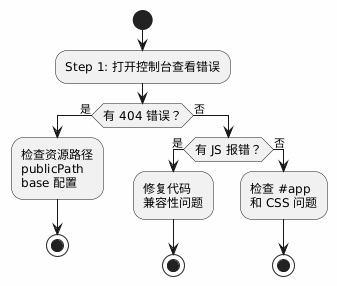
假设你现在面对一个白屏的 Vue 应用,按这个流程走:
@startuml
skinparam backgroundColor #FEFEFE
skinparam shadowing false
skinparam ActivityDiamondFontSize 12
skinparam ActivityFontSize 12

start
:Step 1: 打开控制台查看错误;

if (有 404 错误?) then (是)
  :检查资源路径
  publicPath
  base 配置;
  stop
else (否)
  if (有 JS 报错?) then (是)
    :修复代码
    兼容性问题;
    stop
  else (否)
    :检查 #app
    和 CSS 问题;
    stop
  endif
endif

@enduml
排查脚本
把这段代码粘贴到控制台,快速诊断:
(function diagnoseVueApp() {
  const results = [];

  // 检查 #app 元素
  const appEl = document.getElementById('app');
  if (!appEl) {
    results.push('❌ #app 元素不存在');
  } else {
    results.push('✅ #app 元素存在');
    if (appEl.innerHTML.trim() === '') {
      results.push('⚠️ #app 内容为空,Vue 可能没有挂载成功');
    } else {
      results.push('✅ #app 有内容');
    }
  }

  // 检查 Vue 实例
  if (appEl && appEl.__vue_app__) {
    results.push('✅ Vue 3 实例已挂载');
  } else if (appEl && appEl.__vue__) {
    results.push('✅ Vue 2 实例已挂载');
  } else {
    results.push('⚠️ 未检测到 Vue 实例');
  }

  // 检查控制台错误
  results.push('\n📋 请检查 Console 标签页是否有红色错误');
  results.push('📋 请检查 Network 标签页是否有 404 请求');

  console.log(results.join('\n'));
})();
四、部署前自检 Checklist
每次部署前过一遍这个清单:
## Vue 应用部署自检清单

### 配置检查
- [ ] `publicPath` / `base` 配置正确(和部署路径一致)
- [ ] Router 的 `base` 配置和 `publicPath` 一致
- [ ] Router 模式选择:Hash 模式还是 History 模式?
- [ ] 如果用 History 模式,服务器 Fallback 配置好了吗?

### 构建检查
- [ ] `npm run build` 没有报错
- [ ] `dist` 目录结构正确(有 index.html, js/, css/ 等)
- [ ] 检查 `dist/index.html` 里的资源路径是否正确

### 本地验证
- [ ] 用静态服务器预览 dist 目录:
      `npx serve -s dist`
      或 `python -m http.server 8080 --directory dist`
- [ ] 本地预览时所有页面都能正常访问
- [ ] 路由刷新不会 404

### 服务器检查
- [ ] 文件已正确上传到服务器
- [ ] 文件权限正确(一般 644 或 755)
- [ ] Nginx/Apache 配置已更新并 reload
- [ ] HTTPS 证书正常(如果用 HTTPS)

### 上线后验证
- [ ] 首页能正常显示
- [ ] 各个路由都能访问
- [ ] 刷新页面不会白屏
- [ ] 控制台没有错误
- [ ] 移动端也能正常访问
五、防患于未然:最佳实践
5.1 使用环境变量管理配置
// vue.config.js
module.exports = {
  publicPath: process.env.VUE_APP_PUBLIC_PATH || '/'
}

// .env.production
VUE_APP_PUBLIC_PATH=/myapp/
5.2 添加构建后自动检查
// package.json
{
  "scripts": {
    "build": "vue-cli-service build",
    "postbuild": "node scripts/check-build.js"
  }
}
// scripts/check-build.js
const fs = require('fs')
const path = require('path')

const distPath = path.join(__dirname, '../dist')
const indexPath = path.join(distPath, 'index.html')

// 检查 dist 目录
if (!fs.existsSync(distPath)) {
  console.error('❌ dist 目录不存在')
  process.exit(1)
}

// 检查 index.html
if (!fs.existsSync(indexPath)) {
  console.error('❌ index.html 不存在')
  process.exit(1)
}

// 检查资源路径
const html = fs.readFileSync(indexPath, 'utf-8')
const publicPath = process.env.VUE_APP_PUBLIC_PATH || '/'

if (!html.includes(`src="${publicPath}js/`)) {
  console.warn(`⚠️ 资源路径可能不正确,期望: ${publicPath}`)
}

console.log('✅ 构建检查通过')
5.3 CI/CD 中添加预览环节
# .github/workflows/deploy.yml
jobs:
  build:
    runs-on: ubuntu-latest
    steps:
      - uses: actions/checkout@v3

      - name: Build
        run: npm run build

      - name: Preview Test
        run: |
          npm install -g serve
          serve -s dist -l 3000 &
          sleep 5
          curl -f http://localhost:3000 || exit 1
          echo "✅ Preview test passed"
六、总结
Vue 应用白屏问题虽然恼人,但原因无非就那么几个:
- publicPath 配置错误 — 最常见,第一个检查
- Router History 模式没配服务器 Fallback — 刷新 404 的元凶
- Router base 和 publicPath 不一致 — 路由跳转异常
- JS 执行错误 — 看控制台报错
- 异步组件加载失败 — Chunk 404
- #app 元素问题 — 挂载点丢失
- CSS 问题 — 内容被隐藏
记住这个口诀:先看控制台,再查资源路径,最后排查代码。
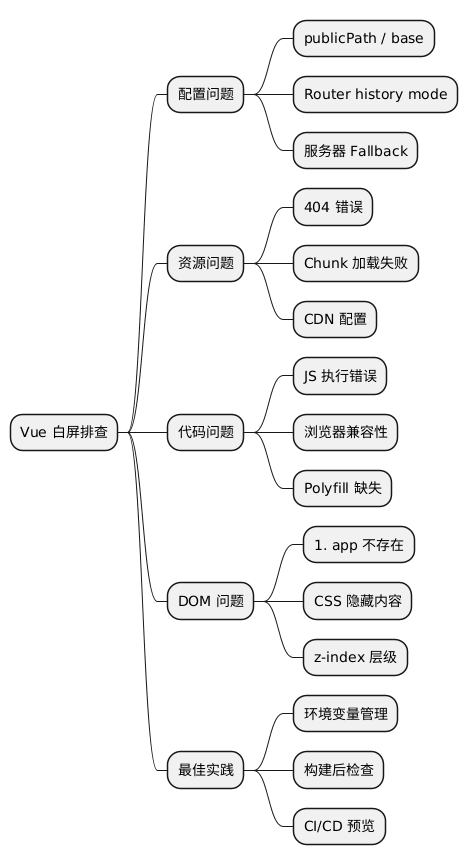
@startmindmap
* Vue 白屏排查
** 配置问题
*** publicPath / base
*** Router history mode
*** 服务器 Fallback
** 资源问题
*** 404 错误
*** Chunk 加载失败
*** CDN 配置
** 代码问题
*** JS 执行错误
*** 浏览器兼容性
*** Polyfill 缺失
** DOM 问题
*** #app 不存在
*** CSS 隐藏内容
*** z-index 层级
** 最佳实践
*** 环境变量管理
*** 构建后检查
*** CI/CD 预览
@endmindmap
参考资料
下次再遇到白屏,别慌。打开这篇文章,五分钟搞定。
本作品采用知识共享署名-非商业性使用-禁止演绎 4.0 国际许可协议进行许可。